

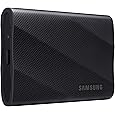
Samsung T7 Portable SSD Review: My Personal Experience After Daily Use
What Is the Samsung T7 Portable SSD?
The Samsung T7 Portable SSD is a compact, high-speed external solid-state drive designed for fast storage, backups, and portable workflows. Built with USB 3.2 Gen 2 technology and enclosed in a sleek aluminum body, the T7 promises impressive read and write speeds, durability, and reliability—all in a device small enough to fit in your pocket.
After using the Samsung T7 extensively on both Windows 11 and macOS systems, I can confidently say this is one of the most practical and performance-driven storage upgrades I’ve made in years.
Why You Should Use the Samsung T7
If you’re still relying on traditional external hard drives or an aging internal HDD, the Samsung T7 can feel like a major upgrade. I personally chose it to improve system performance on older machines, create a reliable backup solution, and have fast portable storage that doesn’t slow me down.
In all of these roles, the Samsung T7 has performed exactly as advertised.
Setup & First Impressions (Windows 11 Experience)
I initially set up the Samsung T7 as a backup drive for a Windows 11 Pro desktop PC. The first thing I did was reformat the drive to NTFS with GPT partitions, which is better suited for modern Windows 10 and 11 systems. Setup was straightforward and quick.
Samsung includes a USB-C to USB-C cable, which is good quality but only about 1.5 feet long. Because I mounted the drive on the right-front side of my PC case, I replaced it with a 3.3-foot USB-C to USB 3.2 Gen 2 cable to ensure I wasn’t limiting the SSD’s speed.
To protect the drive, I placed it in a portable hard drive sleeve mounted to the side of my case. This keeps the SSD secure, prevents accidental disconnections, and eliminates the risk of it being knocked to the floor.
Performance & Speed
Performance is exactly what you’d expect from Samsung. Read and write speeds match official specifications and are roughly ten times faster than the mechanical hard drive it replaced. Large backups and file transfers complete quickly and smoothly.
During active use, the highest temperature I’ve observed is around 42°C, which is well below the 70°C point where thermal throttling becomes an issue. Based on my experience with Samsung M.2 PCIe SSDs, I expect excellent long-term reliability.
Reviving an Older Mac (macOS Experience)
I also purchased a Samsung T7 2TB portable SSD to revive my 2017 Mac, which still had a slow 500GB internal hard drive. Instead of upgrading internally, I configured macOS to run directly from the T7.
The results were dramatic. Boot times dropped to seconds, apps opened almost instantly, and the system felt like a brand-new machine. The performance difference compared to the original drive was night and day.
Portability & Build Quality
The Samsung T7 is extremely compact, lightweight, and easy to carry. Its aluminum casing feels solid and durable, making it safe to toss into a bag without worry. Despite its size, it stays cool during everyday use and feels well-built.
Everyday Use, Backups & Reliability
For everyday backups and file storage, the T7 works exactly as advertised. While speed isn’t always critical for backups, it’s reassuring to know the drive is fast when needed. It’s easy to move between computers and has been completely reliable so far.
Comparison to External HDDs & Other SSDs
Compared to traditional external hard drives, the Samsung T7 is faster, quieter, and far more portable. Against other portable SSDs, Samsung’s balance of performance, durability, and reliability makes the T7 stand out, especially at this price point.
Is the Samsung T7 Portable SSD Worth It?
Yes—without hesitation.
The Samsung T7 offers fast and consistent performance, excellent thermal management, a compact and durable design, and outstanding reliability. Whether you’re backing up files, upgrading an older computer, or need dependable storage on the go, the Samsung T7 is an excellent choice.
For me, it completely transformed the usability of my older Mac and became a storage device I rely on daily.
How to Use Samsung Portable SSD T7
Using the Samsung T7 is very simple and requires no technical knowledge.
-
Connect the Samsung T7 to your computer using the supplied USB-C to USB-C or USB-C to USB-A cable
-
The drive will be detected automatically by Windows, macOS, or Linux
-
Open File Explorer (Windows) or Finder (Mac) to access the drive
-
Drag and drop files just like you would with any internal drive or USB flash drive
You can use the T7 for file storage, backups, media editing, or even running an operating system externally.
How to Connect Samsung Portable SSD T7
To connect the Samsung T7:
-
Plug one end of the USB cable into the SSD
-
Plug the other end into your computer’s USB port
-
The drive powers on automatically—no external power needed
For best performance, connect it to a USB 3.2 Gen 2 or USB-C port. It will still work on older USB ports but at reduced speeds.
How to Eject Samsung Portable SSD T7
Properly ejecting the drive prevents data corruption.
On Windows:
-
Click the Safely Remove Hardware icon in the system tray
-
Select Samsung T7
-
Wait for the “Safe to remove” message
On macOS:
-
Open Finder
-
Click the Eject icon next to the Samsung T7
or -
Drag the T7 drive icon to the Trash (which turns into an Eject symbol)
Once ejected, unplug the cable safely.
How to Format Samsung Portable SSD T7
Formatting the Samsung T7 allows you to optimize it for your operating system.
On Windows:
-
Right-click This PC → Manage → Disk Management
-
Right-click the Samsung T7 drive
-
Select Format
-
Choose NTFS (Windows-only) or exFAT (Windows & Mac compatible)
-
Click OK to complete formatting
On macOS:
-
Open Disk Utility
-
Select Samsung T7
-
Click Erase
-
Choose APFS (Mac-only) or exFAT (cross-platform)
-
Click Erase to finish
⚠️ Formatting will erase all data on the drive—back up your files first.